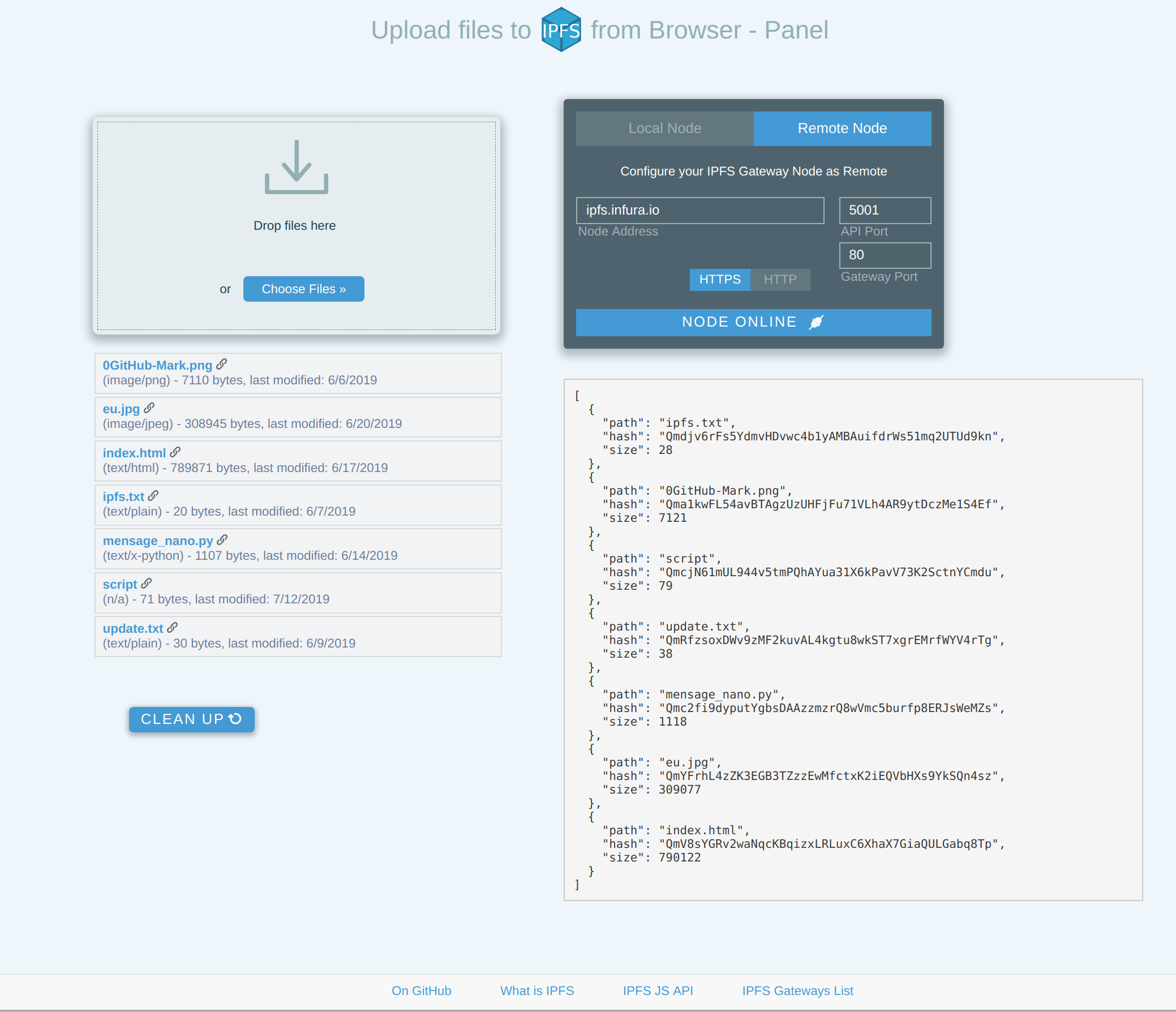
Upload your files to IPFS directly through the Browser. You can choose between using an IPFS node running locally or remotely, so installing an IPFS node is optional.
A simple and intuitive web interface for the API js-ipfs-http-client
The languages used here (javascript, html and css) apply to any web server, we can run both with node js, as per the tutorial below, and with others. To run Apache in nginx, for example, just copy the files from within the directory
/public for the directory of your server (por exemplo /var/www/html/).
To access the uploaded file, replace the hash with this link:
https://ipfs.io/ipfs/#hash
You can also access this link. The same code, hosted by Github Pages
In case you decide to use an IPFS node running locally, name it Setar or Cors correctly.
Otherwise you will have permission errors in the requisitions.
First resolve the dependencies (git, npm and node js)
Debian / Ubuntu:
  sudo apt update && sudo apt upgrade

  sudo apt install curl python-software-properties

  curl -sL https://deb.nodesource.com/setup_12.x | sudo -E bash -

  sudo apt install nodejs

  sudo apt install git
To check the installed versions:
node -v
npm -v
git --version
installing
git clone https://github.com/anarkrypto/upload-files-to-ipfs-from-browser-panel.git

cd upload-files-to-ipfs-from-browser-panel

npm install
To start the server locally then, (port 3000 by default), type in the same directory:
node app.jsIf everything went well, it will return something like
Server listening on https://localhost:3000
Then open this address https://localhost:3000 in your browser and you're done! Now you can start uploading your files, the interface is intuitive.
Caso ainda não tenha instalado, siga os passos de instalação e configuração do node IPFS: IPFS - Getting Started
After that, configure CORS, with the following commands in your terminal:
ipfs config --json API.HTTPHeaders.Access-Control-Allow-Origin '["*"]'
ipfs config --json API.HTTPHeaders.Access-Control-Allow-Methods '["GET", "POST"]'
ipfs config --json API.HTTPHeaders.Access-Control-Allow-Headers '["Authorization"]'
ipfs config --json API.HTTPHeaders.Access-Control-Expose-Headers '["Location"]'
ipfs config --json API.HTTPHeaders.Access-Control-Allow-Credentials '["true"]'
Start node again
ipfs daemon Ready! Your node will be online locally and ready to serve API requests.
By default, the IPFS node runs the API at localhost:5001 (or 127.0.0.1:5001). And the gateway on port 8080.