EasyEnv is a Blender Add On which can generate 3D gaussain splatting environment based on a single image. Leverage the technique of ml-sharp (from Apple) and 3DGS Render (from Kiri Engine).

Although the Add On support CPU, still highly recommend using GPU for faster 3D scene generation- Tested Platform : Windows
- Blender Version : 4.3 and above (4.4, 4.5, 5.0...)
- Full File Size : 10GB (after all files got downloaded)
- Suggested GPU : NVIDIA RTX series or GTX 16 series or newer (Tested on RTX 2070)
- Suggested GPU drivers : NVIDIA driver version 525.60.13 or newer (for CUDA 12.x support)
- Suggested Blender Render : EEVEE
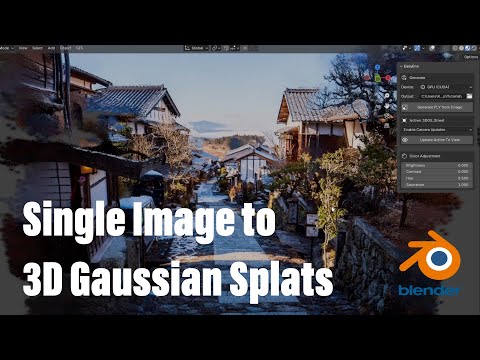
Video tutorial

- Download the zip file from GitHub Releases page
- Go to Preferences, Add-ons, Install from disk and choose the downloaded zip file

Environment Setup Panel
Environment Setup Panel: Checking the status of installation. If all the files got installed, this panel will be gone. Just need to install onceInstall Environment Button: Install all the files needed for this Add On with internet (It's self-contained. Won't affect your computer's system)
Generate Panel
Device Mode: Choose to generate 3D scene with GPU or CPUOutput Folder: Choose the output folder for the generated 3D scene file (.ply)Create Camera Checkbox: Create the camera of original input image when generating 3D scene.Set Render Resolution Checkbox: Set the render resolution to match with original input imageGenerate PLY Button: Choose an input image and start generating 3D sceneImport PLY Button: Import the existing Gaussian Splatting 3D scene file (.ply) into the scene
Adjustment Panel
View Mode: Choose to display 3D scene as Gaussian Splats or Point Clouds (need to select the object first)Update Splats Direction: Update Gaussian Splats to face the viewport (need to select the object first)Color Adjustment: Adjust the brightness, contrast, hue and saturation of the Gaussian Splats (need to select the object first)
Supported Input Image Format: .jpg, .pngCamera Metadata(EXIF): If the input image includes camera metadata, the created camera in Blender will try to match it's focal length, width and height. Otherwise it will use default focal length(35mm). Make sure to check theCreate Camera CheckboxandSet Render Resolution Checkboxif you want to create the camera and set render resolution automatically when generating 3D scene- Some example images with camera metadata: https://pixelpeeper.com/photos

- If your Blender does not have access to the internet, you can manually download the whole file, place it in Blender's Extensions folder and skip the installation process
- For example, extract the EasyEnv file from the zip file and place it in this folder :
C:\Users\TimChen\AppData\Roaming\Blender Foundation\Blender\4.3\extensions\user_default(use your own Blender extension path) - After place the entire file in Blender's Extensions folder, enable the Add On through the Add On panel
- Full size ZIP file link : https://drive.google.com/drive/folders/1c8wVdXtA7EKcuABRp-QfWXXhxgiCUVrK?usp=sharing
-Sometimes the Environment Setup Panel may show up with python packages not found if we place the folder manually. Just close Blender and open again

- ml-sharp (Sharp Monocular View Synthesis in Less Than a Second) by Apple Inc. : https://github.com/apple/ml-sharp?tab=readme-ov-file
- 3DGS Render Blender Addon by Kiri Engine : https://github.com/Kiri-Innovation/3dgs-render-blender-addon?tab=readme-ov-file